
Which bills should I upload?
The Smart Utility feature supports the upload of:
- Electricity bills
- Natural Gas bills
- Water bills
Please note that non-utility purchases such as petrol and diesel are not supported under this feature and should be entered separately under the Direct Emissions
section in Activity Data.
Where should I upload the bills?
The Smart Utility feature is available under:
Data Module → Open Ongoing Measurement Cycle → Activity Data (Step 5) → 'Electricity, Gas, Water'
Within this section, you’ll see the option to Upload Utility Bills.
What should I check before uploading?
Before uploading your bills, please ensure that:
- Bills cover the full measurement period
- All locations within your measurement boundary are included
- Bill dates are clearly visible
- Consumption values and units are clearly stated
For the best processing results:
- Upload each invoice as a separate PDF where possible
- Ensure each bill clearly includes location/address, billing period, consumption value, and unit of measurement
Large combined invoices may not process correctly, particularly where location details appear on one page and consumption data is spread across multiple pages. In these cases, we recommend splitting the document into separate invoices before uploading.
Reviewing uploaded bills
Once your bills have been uploaded, select Review Locations to view the processing results. You can filter uploaded bills by bill name, status, and utility type (Electricity, Gas, Water).
Bill status:
Green indicates the bill has been successfully processed. Red highlights issues such as missing address, missing unit information, bills outside the measurement period, or incomplete data.
If a bill could not be processed, the status will display as Process Failed. Use the comments provided by the system to identify issues, make corrections, and re-upload the relevant bills if required.
Understanding the “Preview Locations” view
The Preview Locations option provides a location-level summary of all processed bills.
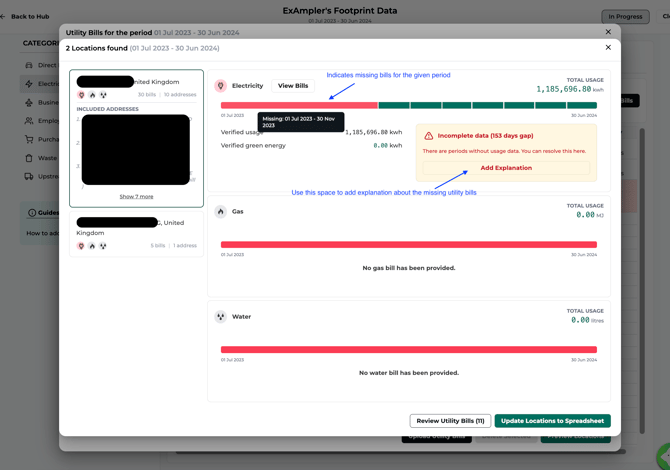
For example, if your organization has offices in Sydney and London, the system will group all successfully processed bills under each respective location. Selecting a location will display electricity, gas, and water consumption views, coverage across the measurement period, and missing or duplicate data alerts.
Status bar indicators
Green sections indicate data has been received for that period. Red sections indicate missing information or potential issues.
Hovering over the status bars will display additional details such as missing periods, duplicate bills, or processing warnings.
What if I don’t have bills for all months?
If utility bills are unavailable for certain periods, you can provide additional context directly within the platform.
Under the relevant status bars, select Add Explanation and enter the reason for the missing data, for example: office relocation, missing invoice, new site opening or closure.
Please provide explanations for all missing periods where applicable.
Once completed, contact our support team and we can assist with extrapolating data for the missing periods where appropriate.
Updating data in the spreadsheet
After reviewing your uploaded bills and making any required changes, click Update Locations to Spreadsheet. This refreshes the values reflected in the Electricity, Gas, and Water tables across all locations.
Can I manually update information?
Yes. Details can be manually updated under the Locations tab.
For example, you can edit location or office names, add locations where you do not have utility bills, enter FTE information, select office types, or manually enter utility consumption values where required. This ensures calculations can still be completed even where utility invoices are unavailable.
Still have questions?
If you need assistance with missing data, or processing issues, please contact our team at support@our-trace.com and we’ll be happy to help.