
Once you've integrated your accounting data or uploaded a CSV you will come to the Trace expenses mapping interface.
Trace offers three methods to map your expenses data to our emissions categories. Using a combination of automated and manual mapping helps balance efficiency with accuracy, particularly for large datasets.
Mapping methods in Trace
Historical mapping
Where available, Trace automatically maps expenses using its database of millions of previously mapped expense lines. This is the default and most efficient method, drawing on established patterns to assign expenses to the appropriate emissions categories.
AI mapping (premium feature - contact the team to unlock
If no historical match exists, Trace uses AI to research the supplier online and infer the most likely emissions category based on publicly available information about their activities. If activated, Trace AI should map 100% of your expenses.
Note that AI struggles to map expenses where the Supplier name is not clearly labelled (e.g. numbers/codes) or relate to person's name (e.g. for employee expenses). Where the supplier name cannot be found online, Trace AI will default to mapping according to the Account name (e.g. Employee travel).
User mapping
Users can manually map expenses at any time. This option is useful where you have specific knowledge about a supplier or service that automated methods cannot reliably capture.
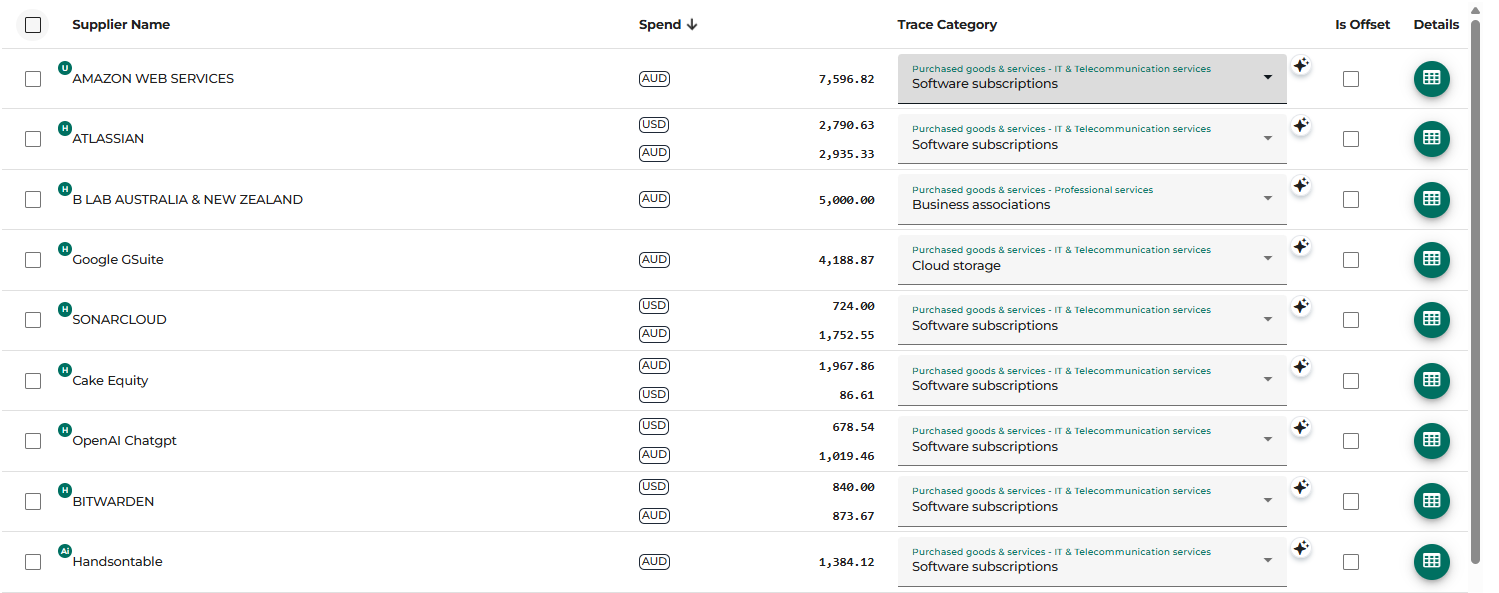
Each expense line shows which mapping method has been applied, giving you full transparency and control.
Example mapping interface
The green dots next to the supplier name represent Historical mapping, User mapping and AI mapping
What are your mapping categories?
To download our list of mapping options, please read this article. Mapping outside the Trace platform is not recommended - the mapping engine is a lot more accurate and leaves an audit trail.
Should I map by account or supplier?
We recommend mapping by supplier, to ensure you get a more accurate footprint. The more specific you can be with your spend mapping, the more comprehensive your emissions assessment will be, and the more targeted you can be with your reduction strategies. However, you can map by account if you prefer or if all transactions within one account relate to the same activity e.g. Accommodation.
Supplier level mapping allows you to see your emissions by Supplier which can inform a supplier engagement strategy.
What is transaction level mapping?
Transaction level mapping allows you to map individual transactions within a single supplier expense line, rather than applying one emissions category to the total spend. This is useful when a supplier provides multiple types of services, for example separating cloud services and advertising across multiple invoices from the same supplier. This feature is available on selected plans only. To access transaction level mapping, click the green spreadsheet icon on the right of the expense line. To activate this feature, contact the Trace support team.
Can I exclude any expenses?
Yes you can choose to exclude expenses but you are required to share a reason. Please read this article for more information on which expenses can be excluded.
Best practice mapping checks
While Trace automates the majority of mapping, we recommend spot checking your top suppliers by spend or emissions. This ensures that high impact items are accurately classified and provides confidence in the overall quality of your inventory.
Manual adjustments can be made where needed, and these updates will be reflected in your emissions calculations.
Watch our step-by-step tutorial on how to map expenses